




Last Updated on January 29, 2026 by DarkNet
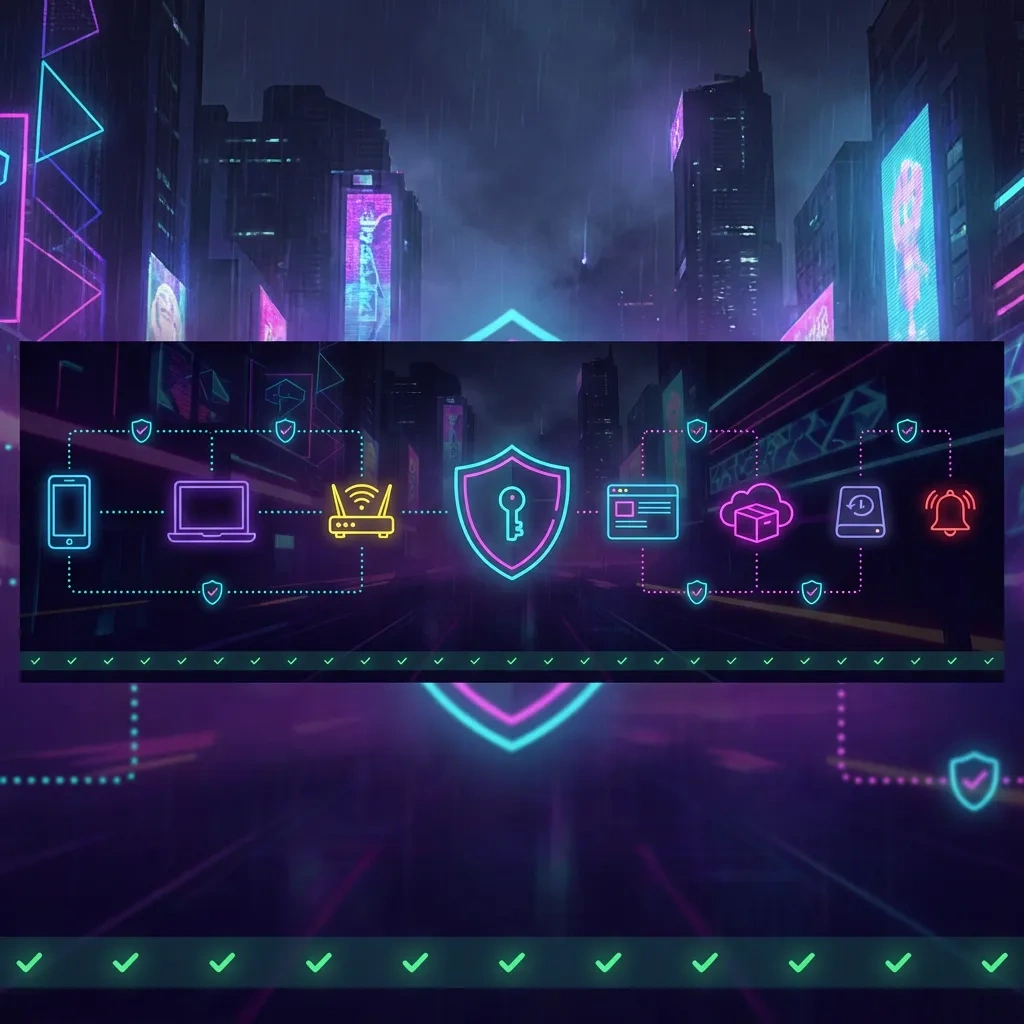
Cut your exposure with a zero trust personal privacy playbook for 2026. Start with identity and accounts, harden devices and networks, protect data, and practice incident response.
Zero Trust for personal privacy: what it means in 2026
Never trust, always verify – at home and on the go
Zero trust personal privacy means every access is verified, regardless of location or device. No automatic trust for your home Wi-Fi, your laptop, or your phone. You authenticate strongly, authorize minimally, and log access. You assume breach is possible and limit the blast radius with compartmentalization.
Identity is the perimeter – prioritize accounts before hardware
In 2026, your identity and payment accounts are the highest-value targets. Attackers use AI phishing, session hijacking, and SIM swaps to seize email, cloud storage, banking, and password managers. Lock down identity first with passkeys and phishing-resistant MFA. Then harden devices, then networks, then data.
2026 threats, zero trust mitigations, and limits
- AI phishing and deepfake voice – mitigate with security keys, verification workflows, and out-of-band checks.
- Session hijacking and token theft – mitigate with short session lifetimes, device binding where offered, and regular sign-out-all-sessions.
- SIM swaps and SMS OTP interception – mitigate with carrier PINs, no SMS recovery, and app or hardware MFA.
- Device theft and stalkerware – mitigate with full disk encryption, strong unlock, and app audit. Zero trust does not guarantee anonymity or perfect security.
Definitions – Zero Trust, passkeys, E2EE, and 3-2-1 backups
- Zero Trust
- A strategy that treats every request as untrusted until verified. Strong auth, least privilege, segmentation, and continuous monitoring.
- Passkeys
- Phishing-resistant password replacements based on FIDO2 public key cryptography. They bind login to your device and site origin.
- E2EE
- End-to-end encryption. Only endpoints hold keys, so providers cannot read content in transit or at rest.
- 3-2-1 backups
- Keep 3 copies of data on 2 different media, with 1 copy offsite and offline or immutable.
Learn more: FIDO Alliance overview fidoalliance.org/passkeys, NIST digital identity guidance pages.nist.gov/800-63-3/sp800-63b.html.
Quick-start threat model: identify your highest-risk accounts and data
Map your identity blast radius – email, phone, SSN, and payment rails
List the root identifiers that unlock everything: primary email addresses, phone numbers, government IDs, bank and card accounts. These reset other accounts and enable social engineering. Protect them first and reduce how widely they are used.
Rank accounts by impact and likelihood
- Tier 1 – email, password manager, cloud drive, banking, crypto, mobile carrier, Apple ID or Google Account.
- Tier 2 – social networks, shopping, productivity, travel, health.
- Tier 3 – forums, newsletters, low-risk apps. Delete or alias where possible.
Prioritize sensitive data categories and where they live
- Financial docs and IDs – store encrypted, minimize cloud exposure.
- Private photos and chat archives – prefer E2EE services, remove sensitive metadata.
- Location history and device telemetry – disable or limit retention.
Prioritized action table – what to do first and how long it takes
| Priority | Action | Outcome | Difficulty | Time |
|---|---|---|---|---|
| 1 | Secure email and password manager with passkeys or security keys | Phishing-resistant control of identity core | Medium | 30-60 min |
| 2 | Set carrier PIN, remove SMS from recovery and MFA | Blocks SIM swap account takeovers | Easy | 10-20 min |
| 3 | Enable device full disk encryption and strong unlock | Protects data at rest from theft | Easy | 10-30 min |
| 4 | Update router firmware, set WPA3-only, rotate Wi-Fi and admin passwords | Hardens home perimeter | Medium | 20-40 min |
| 5 | Harden browser with anti-fingerprinting and privacy defaults | Reduces tracking and session theft risk | Easy | 15-25 min |
| 6 | Switch key chats to E2EE and verify safety numbers | Private messaging with integrity checks | Easy | 10-20 min |
| 7 | Audit cloud sharing links and revoke unknown app access | Shuts off silent data exposure | Medium | 20-40 min |
| 8 | Set up 3-2-1 backups with one immutable or offline copy | Resilient recovery from ransomware or loss | Medium | 45-90 min |
| 9 | Turn on sign-in alerts and breach notifications for Tier 1 accounts | Faster detection and response | Easy | 5-15 min |
| 10 | Freeze credit files at bureaus | Prevents new-account fraud | Easy | 20-30 min |
| 11 | Create separate browser profiles for work, banking, and general | Limits cross-site tracking and session bleed | Easy | 10-20 min |
| 12 | Document recovery kit and emergency contacts | Faster restoration under stress | Medium | 20-40 min |
Accounts lockdown checklist: passwords, passkeys, MFA, and recovery
Adopt passkeys and security keys for Tier 1 accounts
- Enable passkeys or FIDO2 security keys on email, password manager, Apple ID or Google Account, banking, and cloud storage. Start with the account that resets the most others.
- Prefer platform passkeys backed up by the vendor plus at least one hardware security key per person for portability and phishing resistance.
- Remove SMS MFA if alternatives exist. Keep app or hardware MFA. See passkeys docs from Apple support.apple.com/HT213305 and Google support.google.com/accounts/answer/13548313.
- Bind sign-in approvals to your primary devices where supported. Revoke unknown devices and sessions monthly.
Password manager baseline – unique, strong, and rotations
- Choose a reputable password manager with local encryption and passkey support. Lock with a long passphrase and device unlock integration.
- Generate unique 20-plus character passwords for every non-passkey site. Rotate reused or breached passwords immediately.
- Import breach alerts via Have I Been Pwned haveibeenpwned.com or your manager. Monitor for credential stuffing.
SIM swap and legacy recovery risk reduction
- Set a carrier account PIN and optional port-freeze. Remove your phone number from account recovery wherever possible.
- Replace security questions with app codes or keys. If forced to keep them, use random answers stored in your manager.
- Delete old email addresses as recovery options. Verify only current, secured emails are listed.
Account recovery and emergency plan
- Generate recovery codes for email, password manager, and cloud accounts. Store offline in a tamper-evident envelope or in a secure offline file inside an encrypted vault.
- Assign a trusted adult as an emergency contact with limited rights where supported. Create a dead-man document with instructions to reclaim access without revealing secrets.
- Keep at least two hardware keys enrolled across Tier 1 accounts – one primary, one backup stored securely offsite.
- Document how to contact providers for account recovery. Practice a recovery drill once a year.
Device hardening checklist: phones, laptops, and tablets
Mobile hardening – iOS and Android settings that matter
- Enable full device encryption by default. Use a strong passcode – at least 8 digits or alphanumeric. Biometric unlock is for convenience, not as the only control.
- Turn on automatic updates for OS and apps. Remove sideloading unless absolutely needed.
- Restrict lock screen data. Disable USB accessories when locked. Limit notification previews.
- Location hygiene: set most apps to While Using, disable precise location for non-maps apps, and clear location history.
Desktop and laptop hardening – Windows, macOS, and Linux
- Enable full disk encryption: BitLocker, FileVault, or LUKS. Require a strong login and disable automatic login.
- Keep firmware and OS updated. Turn on kernel and memory protections where available. Limit admin rights to a separate account.
- Secure boot and device lock on sleep. Shorten auto-lock timers.
- Use a reputable endpoint protection tool for phishing and malware detection. Avoid overlapping products that conflict.
Physical security and anti-theft readiness
- Enable Find My or similar and verify remote lock and wipe. Record serial numbers.
- Use privacy screen filters in public. Carry devices in bags that do not broadcast brand or value.
- Travel profile: a minimal local account, no auto-mount of sensitive cloud drives, and temporary browser profile.
Reduce attack surface – remove bloatware and high-risk apps
- Uninstall apps you do not use. Revoke background permissions aggressively.
- Avoid always-on microphone and camera apps unless essential. Audit permissions quarterly.
- Block developer or debug modes on daily drivers. Use a separate device for testing or side projects.
Home and travel network checklist: Wi-Fi, routers, VPNs, and public hotspots
Lock down your router – WPA3, firmware, and admin hygiene
- Update to the latest firmware. Change default admin username and password. Disable remote administration unless required.
- Use WPA3 only if possible, or WPA2 AES only with a strong passphrase. Disable WPS.
- Turn on automatic updates if the router supports it. Back up config after changes.
Segment IoT and guests from your primary devices
- Create a guest SSID for visitors. Place smart home devices on a separate SSID and VLAN if supported.
- Block device-to-device communication where possible. Use DNS blocking for known trackers.
Safe travel and public hotspots without drama
- Prefer your mobile hotspot. If you must use public Wi-Fi, use HTTPS-only mode and a trustworthy VPN.
- Turn off auto-join for open networks. Disable file sharing and AirDrop-like features to contacts or off.
- Avoid captive portals with unknown certificates. If required, do not access sensitive accounts until back on trusted networks.
VPN use cases and limits
- Use a VPN to protect traffic on untrusted networks and to reduce ISP and hotspot logging. It does not make you anonymous.
- Do not route everything through a VPN at home if it breaks services. Use encrypted DNS and secure router configs instead.
- Prefer providers with audited no-logs claims and modern protocols like WireGuard. Review provider policies.

Browser and messaging privacy checklist: reduce tracking and metadata
Hardened browser profiles and anti-fingerprinting
- Create separate profiles: banking, work, and general. Keep extensions minimal in banking and work profiles.
- Enable Enhanced Tracking Protection and resist fingerprinting features where available. Consider a privacy-focused browser for general use.
- Force HTTPS-only. Clear cookies on close for the general profile. Use containers or site isolation.
- Review browser vendor privacy docs – for example, Mozilla tracking protections support.mozilla.org.
Minimal extensions and safe configurations
- Limit to a few well-reviewed privacy extensions. Avoid those that need broad permissions if not essential.
- Disable browser password saving if you use a dedicated manager. Turn off form autofill for sensitive data.
Secure messaging with E2EE and verification habits
- Use E2EE by default. Verify safety numbers or security codes for sensitive contacts to prevent impostor-in-the-middle attacks.
- Disable cloud backups for E2EE chats unless backups are also encrypted with a strong passphrase. Check Signal safety features support.signal.org.
- Limit metadata: prefer disappearing messages where appropriate, and avoid linking accounts to your phone number when possible.
Email privacy – aliases and forwarders
- Use email aliases for sign-ups to reduce spam and correlation. Keep a private inbox for Tier 1 accounts only.
- Disable auto-loading of remote images. Turn on spam and phishing protections. Report and delete phish.
Cloud, photos, and documents checklist: encryption, sharing controls, and access logs
Encrypt before upload or use E2EE cloud for sensitive files
- For tax returns, IDs, and private archives, encrypt locally before uploading or store in an E2EE vault.
- Use strong client-side encryption tools with independent keys. Keep decryption keys offline and in your password manager.
Lock down sharing links and audit access logs
- Replace public links with invite-only access. Set expiration dates and passwords for links where supported.
- Review access logs and connected apps monthly. Remove dormant collaborators and revoke unknown OAuth tokens.
Photo libraries, metadata, and sensitive collections
- Strip location and EXIF data before sharing. Disable location for the camera if you do not need it.
- Move sensitive albums to E2EE storage or local encrypted volumes. Avoid auto-sync of sensitive folders.
Backups and ransomware resilience checklist: 3-2-1, immutable copies, and restore drills
Design a 3-2-1 plan with immutable or offline media
- Three copies – primary plus two backups. Two media – for example, local NAS and external drive. One offsite – cloud or physical offsite drive.
- At least one backup must be offline or immutable to survive ransomware and account compromise.
Automate backups and test restores regularly
- Schedule daily incremental and weekly full backups. Verify logs and enable failure alerts.
- Perform quarterly restore drills for a few critical folders and a full device once a year. Document steps and timing.
Ransomware scenarios and offline recovery paths
- If hit, disconnect from networks, preserve evidence, and restore from the last known good immutable backup.
- Review CISA guidance on ransomware response cisa.gov/stopransomware. Never pay for illegal purposes. Recovery speed depends on preparedness.
Monitoring and incident response checklist: alerts, breach actions, and account freeze plans
Turn on alerts, sign-in notifications, and access logs
- Enable new device, new sign-in, and password change alerts on Tier 1 accounts. Route alerts to your primary email and a secondary channel.
- Review audit logs monthly for cloud storage and email. Revoke stale sessions and unfamiliar devices.
Breach response playbook – reset, revoke, and report
- Suspect compromise – change the password or move to a passkey, then sign out of all sessions.
- Rotate recovery options and regenerate recovery codes. Remove SMS recovery.
- Revoke OAuth app tokens you do not recognize. Check email forwarding rules and filters for malicious changes.
- If financial data is involved, call the bank fraud line and monitor transactions. File police reports where required.
Credit freezes and fraud monitoring
- Freeze credit at the major bureaus. This blocks new-account fraud. US residents can start with the FTC guidance consumer.ftc.gov.
- Set transaction alerts for cards and bank accounts. Opt in to breached data notifications with your password manager.
2026 maintenance plan: monthly, quarterly, and yearly privacy tune-ups
Monthly routine – 15-45 min
- Apply updates for OS, firmware, router, and apps.
- Review sign-in alerts and audit logs. Revoke unknown sessions and connected apps.
- Rotate Wi-Fi guest password if used widely. Snapshot router config.
- Run incremental backups and verify last success. Restore a sample file to test.
- Audit browser extensions and remove unused ones.
Quarterly tune-up – 60-120 min
- Change router admin password and rotate primary Wi-Fi passphrase if shared.
- Review recovery info on Tier 1 accounts. Regenerate recovery codes if exposed.
- Run a privacy permissions audit on phones and laptops. Reset high-risk app permissions.
- Test restoring from your offline or immutable backup copy.
Yearly reset – 2-4 hours
- Full restore drill for one device. Replace aging backup drives as needed.
- Replace or add a backup hardware security key. Validate passkeys on all Tier 1 accounts.
- Close or alias old accounts. Purge stale data from cloud and devices.
- Review this guide and update your threat model. Life changes mean risk changes.
FAQ – your 2026 zero trust privacy questions, answered
- Are passkeys better than passwords?
- Yes for most users. Passkeys resist phishing and credential replay. Keep at least one hardware security key enrolled as a backup.
- Should I use a VPN all the time?
- Use it on untrusted networks and when you want to reduce ISP or hotspot logging. It is not an anonymity tool and can break some services at home.
- How do I protect against SIM swaps?
- Set a carrier PIN, remove phone numbers from recovery, and avoid SMS-based MFA. Prefer app codes or security keys.
- What if I lose my security keys?
- Have at least two keys enrolled plus device-synced passkeys. Store recovery codes offline and practice account recovery yearly.
- Can I be anonymous online with this?
- No. This guide reduces risk and tracking but does not provide anonymity or absolute security. Operational discipline still matters.
- Does incognito mode protect privacy?
- It limits local history but not network or site tracking. Use hardened browser settings and containers for better protection.
One-page summary checklist – printable
- Lock Tier 1 accounts – enable passkeys or FIDO2 keys, remove SMS, store recovery codes offline.
- Password manager – unique passwords, long passphrase, breach alerts.
- Carrier PIN – port freeze if available. Remove phone from recovery where possible.
- Device encryption – strong unlock, auto-lock short, Find My enabled.
- Router – firmware update, WPA3 only, no WPS, new admin password.
- Network segmentation – guest SSID and IoT on separate network.
- Browser – separate profiles, anti-fingerprinting, minimal extensions.
- Messaging – E2EE, verify safety numbers, secure backups or disable cloud backups.
- Cloud – encrypt sensitive files, short-lived sharing links, audit logs and OAuth.
- Backups – 3-2-1 with one immutable or offline copy. Test restores.
- Monitoring – sign-in alerts, revoke unknown sessions, credit freeze.
- Maintenance – monthly updates and audits, quarterly recovery check, yearly full drill.
- Key takeaways
- Identity is the new perimeter – secure email and password manager first with passkeys or FIDO2 keys.
- Remove SMS from your security stack – use phishing-resistant MFA and a carrier PIN.
- Harden endpoints and networks – full disk encryption, updated routers, WPA3, and segmentation.
- Minimize data exposure – encrypt before upload, lock sharing, and audit access logs.
- Backups beat ransomware – follow 3-2-1 with one immutable or offline copy and test restores.
- Monitor and respond fast – alerts, revoke sessions, rotate credentials, and freeze credit when needed.
- Maintain the stack – monthly, quarterly, and yearly tune-ups keep protections effective.